Professional Microsoft Teams Profile Photo Tips

Your Teams photo appears before you speak. It sits beside project updates, meeting invitations, chat messages, and calls with people who may not know you yet. A blurry vacation crop or an outdated selfie can make a capable professional look less prepared than they are.
A professional Microsoft Teams profile photo does not need to feel stiff or overly formal. It does need to make you easy to recognize, look clear at a small size, and match the level of trust your role requires. The right image is a small but meaningful part of showing up well at work.
What a Professional Microsoft Teams Profile Photo Should Do
Teams displays profile photos in a compact circular crop, often against a busy interface. That changes what makes an image effective. A photo that looks great full-size can lose impact when it is reduced to a small icon next to your name.
Your photo should clearly show your face, use even lighting, and have enough contrast between you and the background. It should also look current. If a colleague meets you in person after months of video calls, your profile image should make recognition immediate rather than create a moment of uncertainty.
For most professionals, the goal is approachable credibility. You want to look like the person who can lead a meeting, answer a client question, or make a thoughtful decision without appearing distant. A relaxed expression and direct eye contact usually accomplish more than a dramatic pose or a broad, forced smile.
Start With the Right Crop
The crop is where many otherwise strong photos fail in Teams. The platform uses a circular display, so details near the corners of a square image may disappear. A full-body shot, group photo, or image with your face positioned too far away will look vague at the size most coworkers see.
Choose a head-and-shoulders composition with your face centered. Leave a modest amount of space above your head and around your shoulders, but keep your face large enough to read clearly. Your eyes should generally sit near the upper third of the frame.
A square source image is usually the safest choice because it gives Teams room to create its circular crop without cutting off part of your head or shoulder. If you are using a vertical portrait, test the crop before saving it. The image should still work when viewed as a small circle, not only as a polished portrait on your phone.
Keep the Background Quiet
A neutral office, softly blurred workspace, or clean solid-color background is usually the best fit. The background should support the photo, not explain your hobbies, travel history, or home decor.
Avoid bright windows directly behind you, crowded conference rooms, cars, restaurant tables, and visible text. These elements compete for attention and can make a profile photo feel accidental. For client-facing roles, a simple background also travels well across Teams, LinkedIn, company directories, and speaker bios.
Dress for Your Actual Work Context
There is no single correct wardrobe for a Teams profile photo. A lawyer meeting corporate clients, a real estate agent, a software engineering manager, and an independent designer may all need different levels of formality. The most effective choice is one step more polished than your normal day-to-day workwear, not a costume borrowed from someone else’s industry.
Solid colors tend to photograph best. Navy, charcoal, deep green, muted blue, and warm neutrals provide structure without distracting from your face. Busy patterns, large logos, shiny fabrics, and high-contrast stripes can look noisy once the image is reduced.
A blazer can add authority, especially for executives, consultants, financial professionals, and client-facing leaders. It is not mandatory. A well-fitted button-down, refined knit, or clean blouse can look equally credible when it fits the culture of your workplace. What matters most is that your clothing looks intentional and sits comfortably, so your expression remains natural.
Use Lighting That Makes You Look Present and Clear
Good lighting is not about making your face look heavily edited. It is about creating an image that feels clean, accurate, and easy to read on screen.
Natural window light can work well when it falls gently across your face from the front or slightly to one side. Stand facing the window rather than placing it behind you. If you use indoor lighting, avoid a single harsh overhead light, which can create shadows under the eyes and chin.
The most professional result usually comes from soft, even light on both sides of the face. This gives your features definition without exaggerated contrast. It also reduces the temptation to overcorrect the image later with filters that change skin texture or color.
Image quality matters, but camera quality is not the only factor. A recent smartphone can produce a strong source photo if the lens is clean, the room is well lit, and the image is in focus. Hold the camera at eye level or slightly above. Photos taken from below tend to feel less flattering and less natural in a professional setting.
Avoid the Profile Photo Mistakes People Notice
Most Teams photo issues are easy to prevent. They usually happen because a personal social image is repurposed for work without considering how it will appear in a directory or on a call.
Avoid these common choices:
- A group photo with another person partially cropped out
- Sunglasses, hats, or anything that obscures your face
- A distant photo where your face occupies only a small part of the frame
- Heavy filters, beauty effects, or edits that make you look unlike yourself
- An old image that no longer reflects your appearance
- A casual snapshot with distracting clutter, poor focus, or uneven lighting
There is a trade-off between personality and consistency. A photo with a little warmth can make you memorable, while an overly casual image can undermine confidence. For internal Teams use at a creative company, a more relaxed wardrobe or background may fit perfectly. For external meetings, leadership roles, healthcare, legal, or financial services, a cleaner and more traditional presentation is usually the safer choice.
Match Your Teams Photo to Your Professional Presence
Your Teams profile photo does not have to be identical to every other image you use, but it should look like the same person and belong to the same professional brand. When your LinkedIn photo is formal, your company bio image is polished, and your Teams image is a low-light cropped selfie, the mismatch is noticeable.
Using a coordinated headshot across platforms reduces that friction. Colleagues recognize you more quickly. Prospective clients see a consistent presence from the first email to the first video call. Recruiters and hiring managers can connect your application, profile, and conversation without wondering whether they are looking at an outdated image.
This is especially useful for people whose work moves quickly between internal and external conversations: managers, consultants, account executives, recruiters, doctors, attorneys, and business owners. Consistency is not about looking generic. It is about making your professional identity easier to trust.
A Faster Way to Create a Teams-Ready Headshot
A traditional photo session can produce excellent results, but it also requires scheduling, travel, wardrobe planning, and a larger budget. For a Teams photo, many professionals need a practical alternative: an image that looks polished without turning a profile update into a multi-week project.
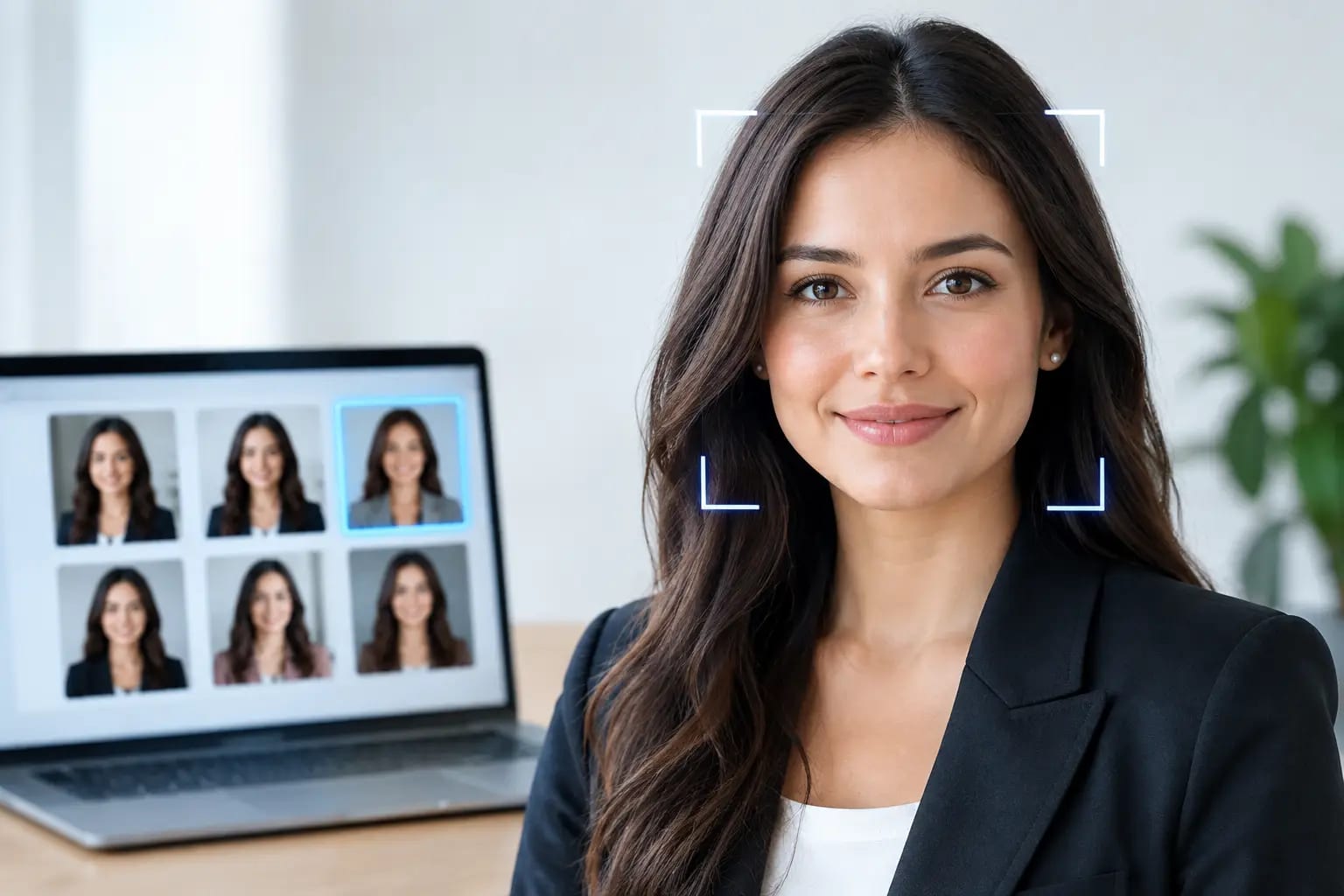
Keeper Headshots turns one to six everyday selfies into studio-quality professional portraits designed for career and business use. The process checks submitted photos before rendering, lets you select professional wardrobe and backdrop styles, and evaluates the result for likeness, polish, and visual artifacts. Rather than leaving you with a large, uncertain gallery, it grades the strongest images and identifies where each one works best.
That quality-control step matters with AI-generated photography. A profile photo should still look recognizably like you, including your natural facial proportions, expression, and overall presence. A technically clean image that feels unfamiliar is not useful for Teams, where real-time recognition matters.
For team leaders, a coordinated set of headshots can also improve an employee directory without asking everyone to attend the same studio session. Consistent framing, lighting, and background styles make the organization look more organized while allowing each person to remain distinct.
Before You Upload Your New Photo
Once you have selected your image, view it at the size people will actually see. Open it on your computer and reduce the preview, or send it to yourself in a Teams chat. If your face is clear, your expression reads well, and the crop does not feel cramped, it is ready.
Use a current, high-resolution file rather than a compressed screenshot. Keep an original square version in a folder with your other professional materials, so you can update platforms without repeatedly recropping or losing quality. It is a small bit of organization that saves time when a new role, company directory request, conference bio, or client proposal arrives.
The best Teams profile photo is not the most elaborate one. It is the one that lets people recognize your professionalism immediately, then focus on the work you are there to do.